How to Create a Role-Specific Daily Briefing for Leaders
Learn how to create a role-specific daily briefing for leaders, streamlining their morning workflow with tailored, actionable insights.
ClaudeDrive
A Yungsten Tech product

How to Create a Role-Specific Daily Briefing for Leaders

A role-specific daily briefing is a short, automated summary built for one person’s job, delivered every morning through a simple pipeline: trigger, fetch, summarize, format, deliver. To create one, you connect two or three data sources, apply a role lens to what gets included, and schedule delivery to the channel that person already checks.
The minimal build looks like this:
- Trigger: a scheduler fires at a set time (6 a.m., before the standup, whenever the role needs it).
- Fetch: the workflow pulls from email, calendar, Slack, or a project tool.
- Summarize: an AI model filters and ranks what matters for that specific role.
- Deliver: the brief lands in email, Slack, a Google Doc, or directly inside Claude.
A working prototype for one role is realistic within a day or two. The bigger decision is which roles go first and what each one actually needs to see.
Key Takeaways
Building a role-specific daily briefing works when the architecture stays simple, the sources stay few, and every line traces back to a real source.
| Point | Details |
|---|---|
| Start with the architecture | Trigger, fetch, summarize, format, deliver is enough for a working prototype in a day or two. |
| Scope by role first | Define what counts as important for each role before picking any tool or connector. |
| Limit sources in the pilot | Two to four high-signal sources beat five loosely connected ones in month one. |
| Enforce a word cap | Keeping executive briefs under roughly 400 words keeps them scannable and decision-ready. |
| Choose permission-aware delivery | ClaudeDrive delivers private, source-linked updates inside Claude with no new dashboard to roll out. |
Practical Resources for Building Your First Pilot
- milesskorpen/skill-daily-briefing for a self-configuring onboarding pattern.
- newrealmco/executive-briefing-agent for a scheduled, code-first build.
- How to onboard your team to AI tools quickly for rollout and change management.
- Claude daily briefing from company context for connecting existing tools inside Claude.
Table of Contents
- Defining the Goal and Role-Specific Scope
- How Do You Design a Template Each Role Trusts?
- Choosing an AI Model and Writing Role-Aware Prompts
- Building the Automation Workflow Step by Step
- Where and When Should the Briefing Arrive?
- How Do You Keep the Briefing Trustworthy and Permission-Safe?
- Testing and Improving the Briefing Over Time
- Two Copyable Briefing Templates to Adapt
- How ClaudeDrive Handles Permissioning and Trust for You
- Sources
Defining the Goal and Role-Specific Scope
Before touching any tool, decide what “done” looks like. A briefing that takes five minutes to read but changes nothing is a failure. A briefing that saves someone a 20-minute inbox scan and points them to one decision is a win.
Frame the goal around outcomes, not content: a 3-minute read, prep for a specific meeting, or a clear list of follow-ups. Each role needs something different:
- CEO: top developments, cash or revenue flags, and one thing that needs a decision today.
- Product lead: priority tickets, roadmap risks, and customer escalations.
- Sales lead: pipeline movement, at-risk deals, and overdue follow-ups.
- Engineer: failed builds, open pull requests waiting on review, and incident status.
Pick two or three success metrics before you build anything: time-to-read, accuracy against source data, and whether the recipient actually acts on what’s flagged.
How Do You Design a Template Each Role Trusts?
Structure beats length. A brief that follows the same skeleton every day builds trust because the reader knows exactly where to look.
A reliable pattern for executive-level briefs: top 3 to 5 developments (one sentence each, source attached), a day-at-a-glance section, one thing worth real attention, and urgent inbox items, all kept under roughly 400 words to stay scannable and decision-ready.
Role-specific rules decide what counts as “important” in the first place:
- A CEO brief filters for anything touching revenue, cash, or a customer at risk of churning.
- A product manager’s brief surfaces tickets above a severity threshold and any roadmap slip.
- An engineer’s brief skips business updates entirely and focuses on build failures and blocked pull requests.
Keep a written rule set per role so the logic doesn’t live only in someone’s head, and set explicit length caps: 400 words for a CEO, maybe 600 for a PM who needs more ticket detail.
Choosing an AI Model and Writing Role-Aware Prompts
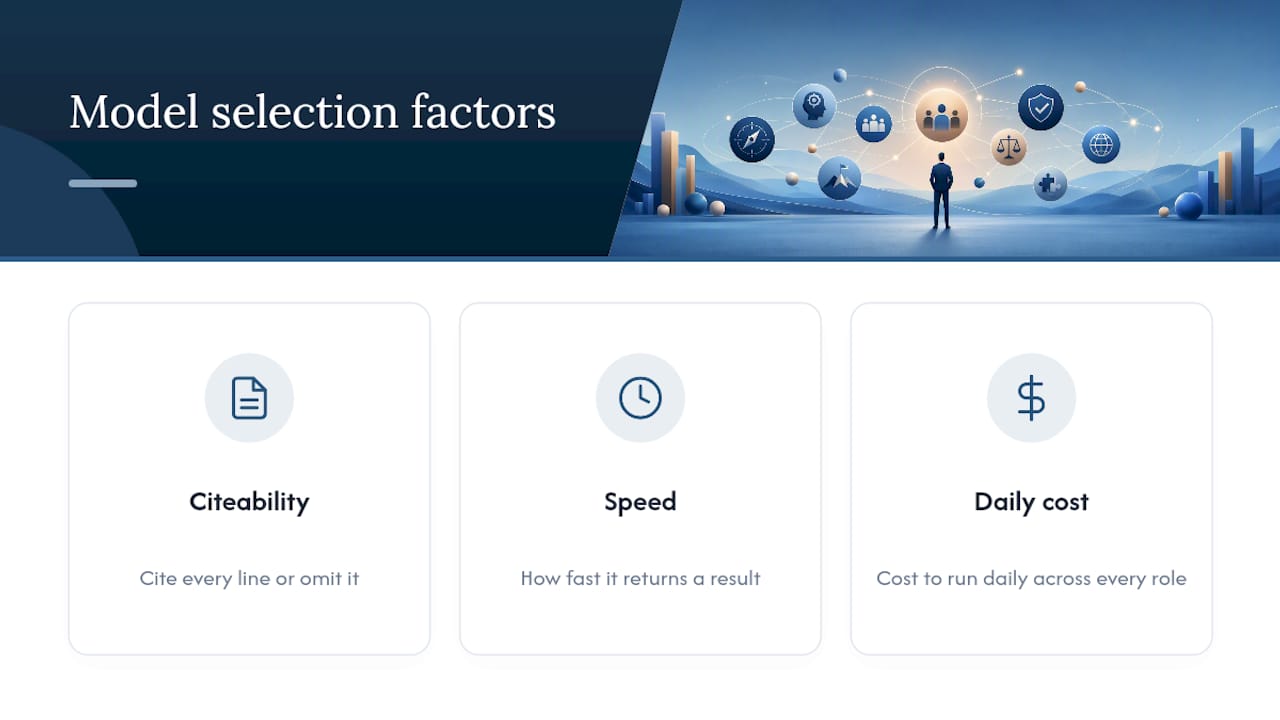
The model you pick matters less than the constraints you put on it. Three things to weigh: whether the model can cite the source of every line, how fast it returns a result, and what it costs to run daily across every role.
A prompt built for a role-specific brief should specify the role, the priority lens, and hard output limits. A pattern worth copying:
Config-driven tools that let a person declare role, tone, topic, and delivery method in a single file make it easy to reuse one engine across many roles without rewriting logic each time, a pattern briefcase-ai demonstrates well.
Pro Tip: Put the word cap and the “cite every line or omit it” instruction in the same sentence. Models drop constraints they see as optional far more often when they’re spread across a long prompt.
Building the Automation Workflow Step by Step
Five steps take you from idea to working prototype:
- Trigger: set a cron job, a scheduler inside a no-code tool, or an event-based hook (a Slack message, a calendar event) to kick things off.
- Fetch: pull data through connectors, webhooks, or direct API calls to email, Slack, calendar, or your project tool.
- Summarize and prioritize: send the fetched data to an LLM with the role-specific prompt, and require inline source links on every claim.
- Format: convert the output into Markdown, HTML, or a Google Doc, depending on where it’s delivered.
- Deliver: route the finished brief to email, Slack, or a doc link.
For implementation, you have three realistic paths. No-code platforms like Zapier or Make suit a first pilot with no engineering time. A scheduled agent, such as a Python script running on GitHub Actions that pulls Gmail, RSS, and GitHub signals and scores them against a profile, gives more control for teams with some engineering capacity. Platform integrations, where the briefing lives inside a tool people already use daily, cut onboarding friction the most.
Where and When Should the Briefing Arrive?
Delivery channel matters as much as content. Common options: email for anyone who lives in their inbox, Slack or Teams for real-time teams, a Google Doc for anyone who wants a running log, and messaging apps like Telegram for mobile-first roles.
- Send executive briefs early morning, before the first meeting.
- Send sales or support briefs right before a shift or standup.
- Trigger event-based briefs (a deal closing, an incident) outside the daily schedule.
- Set delivery time in each recipient’s own time zone, not the sender’s.
How Do You Keep the Briefing Trustworthy and Permission-Safe?
A briefing that leaks the wrong information to the wrong person does more damage than one that’s simply late. Build permissioning in from the start, not as a patch afterward.
The basics: assign role-based access so each person only pulls from sources they’re already allowed to see, check permissions at the source level rather than trusting the summary layer, and give each recipient a private view rather than one shared document with everyone’s information mixed together.

Traceability matters just as much. Every line in the brief should point back to where it came from, an email, a ticket, a specific meeting note, so nothing reads as invented. This mirrors a discipline long established outside software: OSHA’s job briefing standard requires documented pre-shift briefings for hazardous work specifically so participation and hazard mitigation can be verified after the fact. A daily business briefing without a traceable source is the same problem in a different setting.
For a pilot, run a short audit checklist: confirm consent from anyone whose data feeds the brief, define exactly what happens when someone leaves the company (instant cutoff, not a delayed one), and set a retention policy for how long old briefs are stored.
Pro Tip: Ask “can this person see the source document itself?” before you ask “should this line appear in their brief?” If the answer to the first is no, the second is automatically no, no matter how useful the line looks.
Testing and Improving the Briefing Over Time
A briefing that goes straight to production without a dry run tends to fail quietly, wrong data, missing context, nobody notices until trust is already gone.
- Run the workflow manually for at least three to five days before scheduling it, and compare every line against the source it claims to cite.
- Track a small set of metrics: accuracy rate, how often the brief flags something irrelevant, how long people actually spend reading it, and whether flagged items get acted on.
- Build a lightweight feedback loop: a one-tap rating on each brief, a weekly check on what’s over or under-included, and a running blacklist for sources that produce noise. Tuning scoring thresholds up or down is often the fastest way to fix a brief that’s either too sparse or too noisy.
Two Copyable Briefing Templates to Adapt
Example A, CEO daily briefing (3-minute read): Top 3 developments (one line each, source linked). Day at a glance: meetings, deadlines. One thing to act on today. Urgent inbox items requiring a reply.
Example B, product manager briefing: Priority tickets above severity threshold. Roadmap risks flagged this week. Customer escalations from the last 24 hours. One recommended action.
Adjust tone and word count by role: keep executive briefs terse and decision-first, and give technical roles more detail on tickets and build status since precision matters more than brevity there.
A Chief of Staff’s Take on Getting This Right
Speed beats completeness in month one. Start with two sources per role, not five, and add more only after the first version earns trust. Pause and add stricter audit controls the moment a brief touches anything client-facing or legal. For a first pilot, one role and two sources is plenty.
How ClaudeDrive Handles Permissioning and Trust for You
ClaudeDrive is built for exactly the tension this guide keeps circling back to: useful briefings need broad access to company information, but broad access is precisely what makes leaders nervous. ClaudeDrive solves that by giving each person a private, permission-aware update inside the Claude account they already use, connected to meeting notes, GitHub, and your calendar, with every line traceable back to a real source and nothing invented.
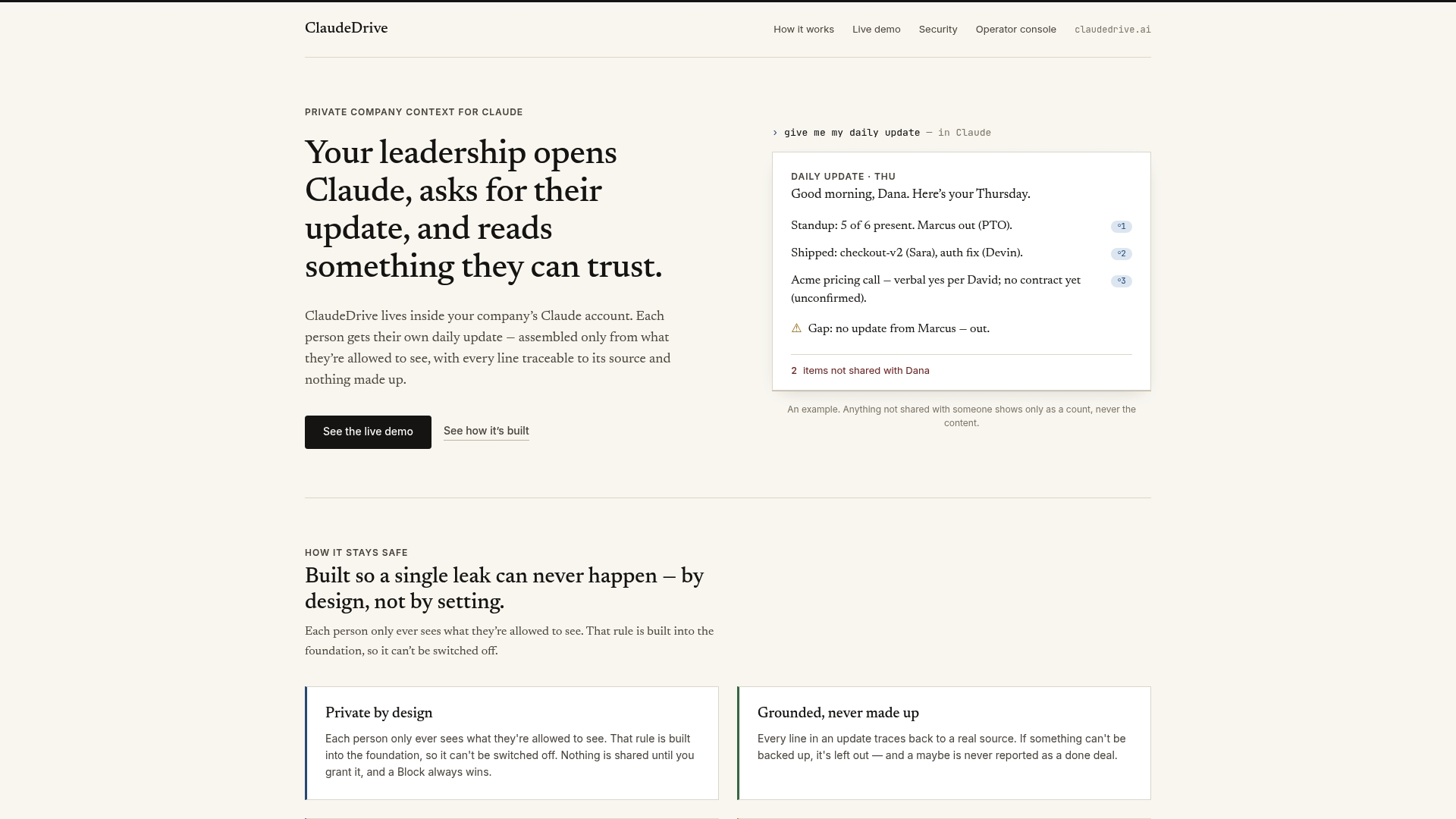
There’s no new dashboard to roll out and no wiki to maintain. You connect a few tools once, and ClaudeDrive figures out who’s allowed to see what before a single line reaches anyone’s screen. Offboarding someone cuts their access instantly, and every brief stays auditable after the fact, which matters if you’re the one accountable for what leadership reads each morning. If you’re weighing whether to build this in house or use something that already handles the permissioning problem, see the live demo at the ClaudeDrive Console.
Sources
The sources you connect determine whether the briefing is useful or just noise. Most roles pull from a mix of communication tools (email, Slack or Teams, meeting notes), operational tools (CRM, ticketing, dashboards), and, for technical roles, code repositories.
Connector choice matters more than people expect:
- OSHA standard 1926.952 — Job briefings
- Morning Brief Analyst | Claude Code Playbooks
- milesskorpen/skill-daily-briefing
- newrealmco/executive-briefing-agent
Start narrow. A self-configuring briefing skill that interviews the user on first run to learn their tools and priorities, then synthesizes email, calendar, and Slack signals on every subsequent run, is a useful model for how little setup a first version needs. Pick two to four high-signal sources for the pilot. Adding a fifth source rarely improves the brief as much as tightening the four you already have.