Claude Daily Briefing from Company Context: 2026 Guide
Discover the power of the Claude daily briefing from company context. Get personalized data summaries each morning for efficient decision-making.
ClaudeDrive
A Yungsten Tech product

Claude Daily Briefing from Company Context: 2026 Guide

A Claude daily briefing from company context is a personalized, automated summary of your organization’s critical internal data, delivered each morning directly inside Claude. You open Claude, ask for your update, and read one clear digest built only from what you are permitted to see. Every line traces back to a real source. Nothing is made up. Nothing crosses a permission boundary it should not.
The briefing works as a filter, not a wiki. Its value is delivering one high-trust summary so you are not bouncing between dashboards, inboxes, and project tools before your first meeting. ClaudeDrive is the private company-context layer that makes this possible, feeding Claude with your organization’s data without requiring a new app or a new dashboard.
Here is what a well-structured briefing covers:
- Today’s calendar events with times, locations, and meeting links
- Open priority tasks from connected project tools
- Unread emails from the last 12 hours that need a response
- A suggested priority order for the day
- Any internal metrics or recent developments connected to your data feeds
The briefing is personalized by role and data access. A COO sees operations data. A CTO sees engineering updates. Neither sees what the other is not authorized to view.
How Claude daily briefings integrate securely with your company data

The briefing pulls from tools your organization already uses. Connectors for Google Calendar, Gmail, Notion, GitHub, and Microsoft 365 link to Claude through administrator-approved integrations. Organizational administrator involvement is required to grant permissions for any agentic capability, including reading calendars or sending email. That is not a formality. It is the governance layer that keeps the system trustworthy.
ClaudeDrive enforces document-level access controls, so each leader’s briefing reflects only what they are authorized to see. The briefing output is private and personalized, showing only what the recipient is allowed to see based on company permissions and roles. No cross-role data leaks. No aggregated views that accidentally surface restricted information.
Key integration points:
- Connectors are scoped to read access by default; write capabilities (such as drafting email via Microsoft 365) require explicit admin consent
- A configuration file, typically named
claude.md, captures your role, active projects, VIP contacts, and priorities so the briefing stays calibrated to what you actually care about - Briefings run locally within Claude Desktop, relying on active connections to source services
- Audit trails are maintained so IT governance teams can review what was accessed and when
What goes into an effective daily briefing
Effective executive briefings are capped at around 400 words, focusing on industry news, a calendar overview, missed items, and urgent messages. That limit is intentional. A briefing that runs longer stops being a briefing and starts being another inbox.
The structure that works for most leaders:
- Calendar — all events today with times, attendees, and any meeting links
- Priority tasks — open items marked urgent or overdue from connected project tools
- Email review — unread messages from the past 12 hours that need a response, with sender, subject, and a one-sentence summary
- Suggested first action — one concrete thing to tackle before noon
Output lands as a new Notion page or a run log in Claude Desktop, ready before you open your laptop. When connected to relevant data feeds, the briefing can also surface recent internal metrics or industry developments worth your attention. The format stays scannable: short headers, bullet points, no paragraphs where a bullet will do.
Pro Tip: Add a “focus for this week” field to your claude.md file. It keeps the “suggested first action” section anchored to your current top priority rather than defaulting to whatever looks most recent.
Best practices for keeping your briefing relevant
Calibrated prompts focused on high-signal items produce substantially better briefings than broad instructions. The common mistake is over-engineering the prompt. A briefing that tries to pull everything produces a wall of text that nobody reads.
What works:
- Define specific priority rubrics aligned to your role and update them every few weeks as your focus shifts
- Keep the
claude.mdfile concise: your title, two or three active projects, five or fewer VIP contacts, and your current top priority - Limit email scanning to urgent unread messages from the last 12 hours, not your full inbox
- Schedule the briefing to run automatically before you start work, rather than triggering it manually each morning
Scheduling is the real unlock. Once the briefing stops being something you have to remember to request and starts running on its own, you stop missing it. Travis Bryant, Head of US Mid-Market GTM at Anthropic, describes the scheduler as the bigger unlock than the skill itself.
Pro Tip: Avoid broad status-update prompts. Constrain the briefing to urgent unread emails and specific calendar commitments. Broader context is better handled in a separate weekly review.
Security and trust guarantees for corporate briefings
Every line in a Claude daily briefing traces back to a real, authorized source. No content is fabricated. No data is pulled from outside the permissions boundary. That guarantee is what separates a trusted briefing from a plausible-sounding summary that might be wrong.
The security model rests on several concrete guarantees:
- Source traceability: every item in the briefing links to a real document, email, or calendar event the recipient is authorized to see
- No hallucination: Claude does not fill gaps with inferred or invented content
- Local execution: briefings run within Claude Desktop, so data does not leave your corporate environment unless you explicitly permit it
- Admin-controlled permissions: write capabilities, such as creating SharePoint files or sending email, require Microsoft Entra admin consent before they activate
- Audit logging: configuration controls let IT teams review access without disrupting the briefing workflow
One practical note: if Claude Desktop is closed when a scheduled briefing fires, the task is skipped. There is no catch-up run. That is a feature, not a bug. A stale briefing built from yesterday’s data is worse than no briefing.
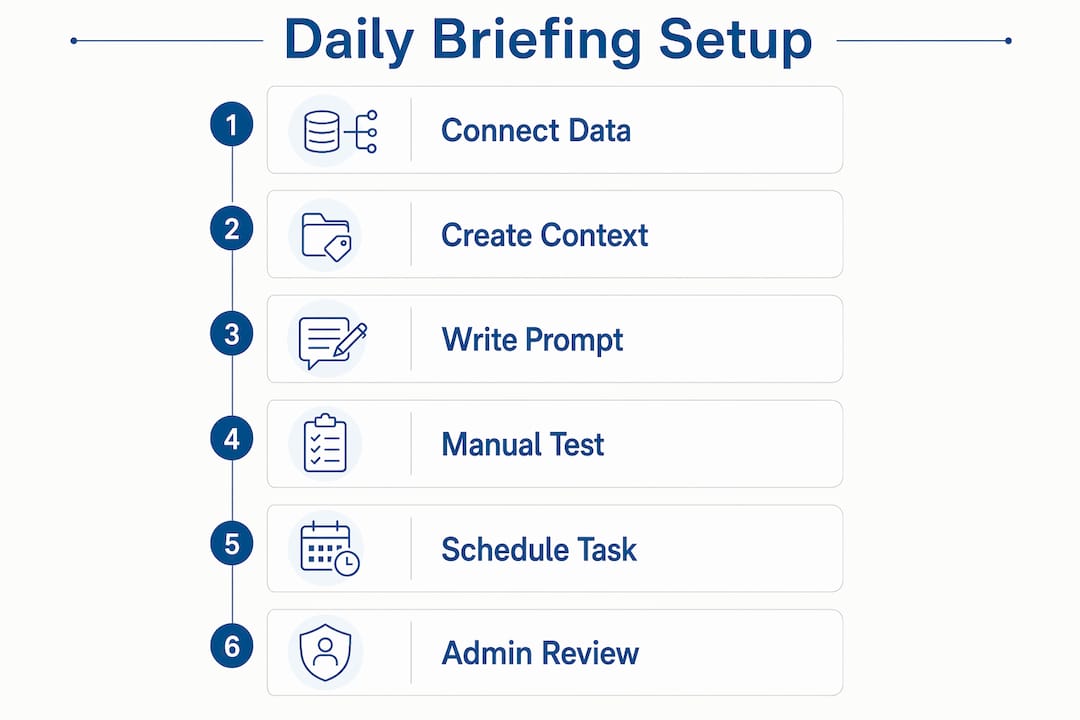
How to set up Claude daily briefings in your corporate IT environment
Setup takes a short amount of time the first time. The steps below assume Claude Desktop is already installed and your organization has a Claude Pro or higher plan.
Step 1: Connect your data sources. In Claude Desktop settings, add MCP connectors for the tools you want the briefing to pull from. At minimum: Google Calendar and a task management tool such as Notion. Gmail adds meaningful value if you receive time-sensitive messages overnight. Configure each connector in claude_desktop_config.json and authenticate with each service before building the briefing task.
Step 2: Create your context file. Write a claude.md file that includes your role, active projects, VIP contacts, and current priorities. This file tells Claude what matters to you and what to skip. The more specific it is, the sharper the briefing.
Step 3: Write your briefing prompt. The prompt should specify exactly what to pull, how to structure the output, and where to write it. A working structure: check Google Calendar for today’s events, pull open priority tasks from Notion, scan Gmail for unread messages needing a response, and write the compiled briefing to a new Notion page titled with today’s date.
Step 4: Test manually before scheduling. Trigger the task once by hand. Verify it pulls from the correct Notion database, writes to the right parent page, and that calendar and email connections are live. Most first-run failures are authentication issues with MCP connectors.
Step 5: Set the schedule. In Claude Desktop, set the task to run daily at a time before you start work, typically 6:00 AM or 7:00 AM. Configure Claude Desktop to launch at startup so it is running when the task fires.
Step 6: Involve your administrator. For any write capabilities or organization-wide deployment, your IT administrator needs to grant permissions through your identity provider. This step is required, not optional, for enterprise use.
How to measure whether your briefing is actually working
A briefing that nobody reads is not a briefing. The most direct measure is whether you open it before your first meeting. If you skip it more than twice a week, the content is not calibrated correctly.
Practical KPIs worth tracking:
- Open rate: are leaders actually reading the briefing each morning, or ignoring it?
- Action rate: how many suggested first actions get completed before noon?
- Prompt revision frequency: a briefing that requires frequent manual corrections signals a miscalibrated prompt or stale
claude.mdfile - Time saved: compare morning context-gathering time before and after deployment
The feedback loop is simple. After two weeks, review the last ten briefings. Flag any item that was irrelevant or any urgent item that was missed. Adjust the priority rubric in your claude.md file accordingly. Leaders who refine their rubrics regularly report clear improvements in briefing relevance. A quarterly review of your connected sources and prompt structure keeps the briefing from going stale as your role and priorities shift.
For team-wide deployments, collect structured feedback from each leader after the first month. Ask two questions: what did you act on, and what did you skip? The answers tell you exactly where to tighten the prompt.
ClaudeDrive gives your leadership team a briefing they can trust
Most leaders already use Claude. ClaudeDrive is the layer that makes Claude aware of your company’s context, without asking anyone to adopt a new tool or learn a new interface.
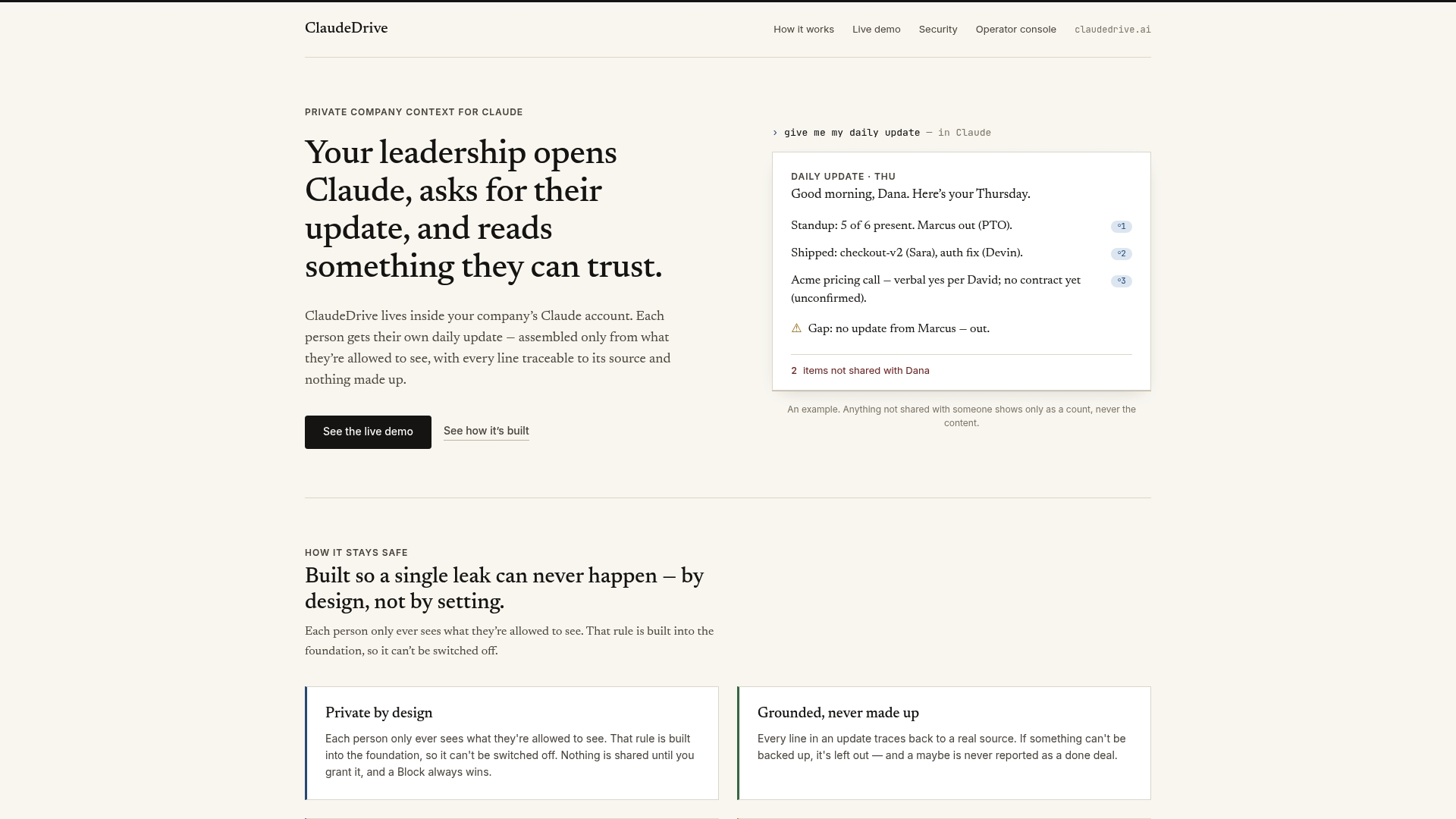
Connect your meeting notes, GitHub, calendar, and email. Tag who is allowed to see what. Each leader gets their own private daily update inside the Claude account they already have. Every line is traceable. Nothing is invented. Nothing leaks across a permission line it should not cross. No new dashboard to maintain, no wiki to keep current, no separate assistant to manage.
ClaudeDrive is built by Yungsten Tech specifically for this use case: trusted daily updates for company leaders, drawn from real sources, delivered where they already work. If you want to see how it works with your organization’s data, talk to us about a pilot.
Key Takeaways
ClaudeDrive delivers a Claude daily briefing from company context that is sourced, permission-bound, and ready before your first meeting, with no new tools required.
| Point | Details |
|---|---|
| Briefing length | Cap output at 400 words to keep the briefing scannable and high-signal. |
| Permission model | Organizational administrators must approve all connectors; each leader sees only what their role permits. |
| Scheduling matters | Automated daily runs prevent missed briefings; manual triggers are unreliable over time. |
| Prompt calibration | A specific claude.md file with role, projects, and VIP contacts sharply improves briefing relevance. |
| ClaudeDrive | The private company-context layer that feeds Claude with sourced, role-tailored daily updates, built by Yungsten Tech. |