Give Me My Daily Update in Claude: A Leader's Guide
Transform your mornings. Learn how to "give me my daily update in Claude" and save 60 minutes daily with automated briefings.
ClaudeDrive
A Yungsten Tech product

Give Me My Daily Update in Claude: A Leader’s Guide

A daily update in Claude is defined as an automated briefing that pulls data from your connected tools, synthesizes it, and delivers one clear summary you can read in minutes. Leaders who set this up correctly save approximately 60 minutes every morning by replacing scattered emails, Slack threads, and calendar checks with a single digest. The key is treating the briefing as a system, not a one-off request. ClaudeDrive is built on exactly this principle: you open Claude, ask for your update, and read something traceable and trustworthy. This guide covers every step, from prerequisites to prompt design to troubleshooting.
What does “give me my daily update in Claude” actually mean?
Asking Claude for your daily update is a shorthand for a configured workflow. Claude reads from your connected sources, applies your instructions, and returns a structured summary. Without configuration, Claude has no access to your calendar or inbox. With it, the phrase becomes a reliable trigger for a personalized briefing.

The standard industry term for this workflow is a scheduled AI briefing. The informal phrase “give me my daily update in Claude” describes the same outcome: a leader opens Claude and receives a curated summary of what happened since the last check. Daily AI updates consistently outperform weekly reports for decision speed because the information is current, not stale.
The briefing pulls from sources you define: Gmail, Slack, Google Calendar, Notion, GitHub, or meeting notes. Each source adds a layer of context. A well-built briefing tells you what changed, what needs a decision, and what can wait.
What do you need before setting up a Claude daily briefing?
A Claude Pro account is the baseline requirement. Claude Pro unlocks scheduled tasks and the Cowork and Code environments, both of which support automated briefing delivery. The platform enforces a minimum 1-hour interval for automated tasks, so sub-hourly updates are not supported.
Beyond the account, you need at least two or three connected data sources to make the briefing worth reading. Connecting apps like Slack, Gmail, Notion, and Google Calendar via Model Context Protocol (MCP) gives Claude access to timely data from multiple systems. MCP connectors are the pipes. Without them, Claude generates responses from its training data, not your live company context.
The two main execution environments differ in one critical way:
| Feature | Cowork | Code |
|---|---|---|
| Execution location | Local device | Cloud |
| Device must be on | Yes | No |
| Setup complexity | Lower | Higher |
| Best for | Personal briefings | Team-wide delivery |
| Scheduling reliability | Depends on device uptime | Runs independently |
Key setup requirements at a glance:
- Claude Pro subscription (required for scheduled tasks)
- At least one MCP connector (Gmail, Slack, Google Calendar, or Notion)
- A delivery target: Slack DM, email, Notion page, or Claude thread
- A tested prompt before committing to a schedule
Setting up a daily briefing typically takes 10–30 minutes, depending on how many sources you connect and how specific your prompt is.
How do you write a prompt that produces a useful daily summary?
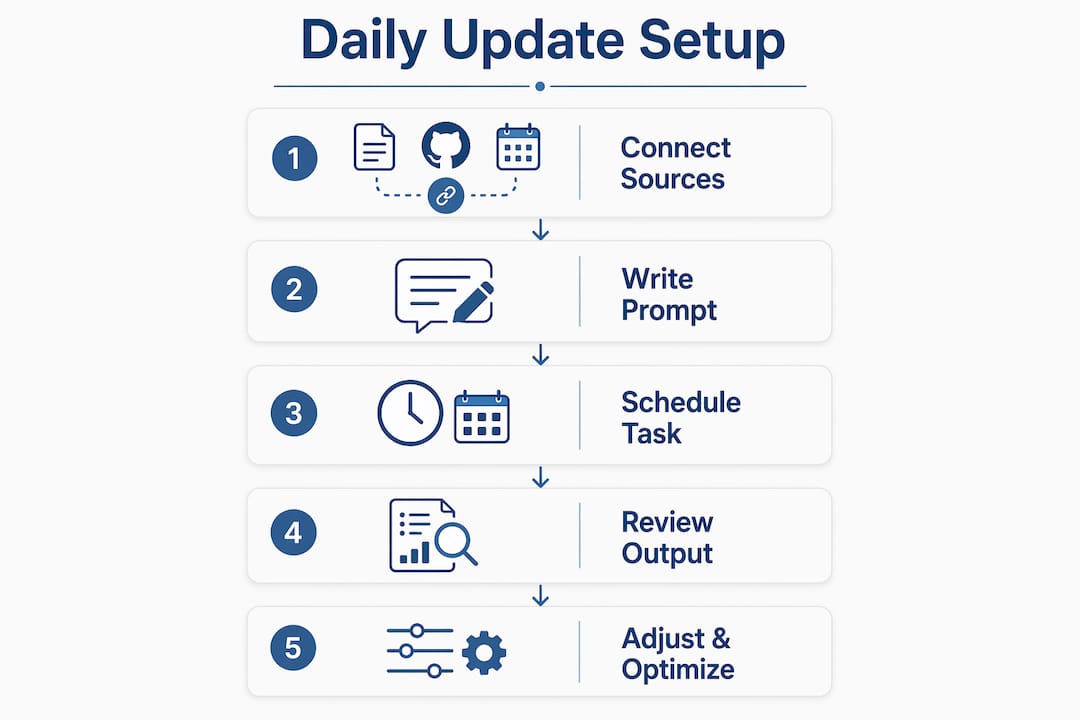
The prompt is the most important variable in the entire system. A vague prompt returns a vague briefing. A precise prompt returns something you can act on in three minutes.
Start by dividing your briefing into two categories: efficiency content (emails requiring replies, meetings today, overdue tasks) and signal content (project blockers, team risks, industry news relevant to your decisions). This separation prevents the briefing from becoming a flat list of everything that happened. Defining granular criteria for what counts as important is what separates a useful briefing from a noise dump.
A working prompt structure looks like this:
- State the time window: “Summarize activity from the past 24 hours.”
- Name the sources: “Pull from Gmail, Slack #engineering, and Google Calendar.”
- Set the format: “Use three sections: Decisions Needed, FYI Only, and Today’s Schedule.”
- Add filters: “Exclude automated notifications, marketing emails, and calendar invites with no agenda.”
- Set a length cap: “Keep the total briefing under 400 words.”
- Add a quiet-day rule: “If no high-priority items exist, say so clearly. Do not pad the briefing.”
The time window filter is the most commonly skipped step. Without it, Claude may resurface items from three days ago alongside today’s urgent messages. Specifying “past 24 hours” or “since 6:00 PM yesterday” keeps the briefing current.
Claude also supports an interview mode where it asks clarifying questions before generating the briefing template. Use this once during setup to surface gaps in your prompt logic.
Pro Tip: Save your finalized prompt as a named instruction set in Claude. This way, you can trigger the same briefing structure with a single short command rather than retyping the full prompt each morning.
How do you schedule and deliver your daily update automatically?
Once your prompt works reliably in manual tests, scheduling is straightforward. The sequence below applies to both Cowork and Code environments.
- Open Claude and navigate to the Tasks or Routines panel.
- Paste your finalized prompt into the task editor.
- Set the schedule: most leaders choose 6:30 AM or 7:00 AM local time.
- Select your delivery target: Slack DM, email, Notion database entry, or Claude thread.
- Save the task and run it manually once to confirm output quality.
- Activate the schedule only after the manual run returns clean results.
Testing pipelines with a one-off run 6–12 hours before committing to a schedule catches connector failures before they affect your morning routine. This step is not optional. A broken connector delivers a blank briefing or an error, which is worse than no briefing at all.
Delivery platform tradeoffs:
- Slack DM: Fast to read, easy to share with a chief of staff, but no persistent archive by default.
- Email: Familiar format, searchable, but adds to inbox volume.
- Notion database: Best for teams that want a shared log of daily briefings with version history.
- Claude thread: Keeps everything in one place, but requires opening Claude to read.
Claude Code Routines run as cloud-hosted, asynchronous jobs that execute independently of your local machine. This matters for reliability: if your laptop is closed at 6:30 AM, a Cowork task will not run. A Code routine will. For executives who travel or work across time zones, cloud-side execution is the more dependable choice.
Pro Tip: Design your workflow to treat the briefing as an artifact stored in a fixed location, such as a Notion page or a named Slack channel. Asynchronous delivery means the briefing may arrive a few minutes after the scheduled time. Checking a fixed location is faster than waiting for a notification.
What are the most common problems with Claude daily updates?
The most frequent failure is a connector that stops authenticating. OAuth tokens for Gmail and Slack expire or get revoked after password changes. Build a weekly check into your calendar to confirm all connectors are live.
Information overload is the second most common problem. Leaders who connect too many sources without tight filters end up with a 1,200-word briefing that takes longer to read than the original emails. The fix is ruthless filtering: if a source has not produced a useful signal in two weeks, remove it from the prompt.
Key troubleshooting practices:
- Add explicit data-loading instructions to your prompt. Cloud routines sometimes encounter deferred connector loading, where a source appears connected but has not fully synced. Telling Claude to “wait for all sources to load before summarizing” reduces this failure mode.
- Use quiet-day logic in every prompt. Without it, Claude fills a slow news day with marginal content to meet length expectations. A briefing that says “No high-priority items today” is more valuable than a padded one.
- Review and refine the prompt every two weeks. Your priorities shift. Your prompt should reflect that.
“The discipline of narrowing the briefing to essential categories not only saves time but also transforms leadership decision-making by highlighting strategic signals.” This is the real return on the setup investment: not just time saved, but better signal-to-noise ratio across every decision you make.
Key Takeaways
A scheduled AI briefing in Claude delivers reliable, source-traceable daily updates when built on a precise prompt, verified connectors, and a tested delivery pipeline.
| Point | Details |
|---|---|
| Claude Pro is required | Scheduled tasks and MCP connectors are only available on Claude Pro. |
| Prompt precision drives quality | Specify time windows, source filters, and a quiet-day rule in every prompt. |
| Test before you schedule | Run the briefing manually 6–12 hours before activating the schedule. |
| Cloud execution beats local | Claude Code Routines run without your device being on, making them more reliable. |
| Iterate the prompt regularly | Review and adjust your briefing criteria every two weeks as priorities change. |
Why I think most executives set this up wrong
The mistake I see most often is treating the daily briefing as a technical project. Leaders hand it to an IT team member, get a working pipeline back, and then wonder why the briefing feels generic two weeks later. The briefing reflects whoever wrote the prompt. If you did not write it, it does not reflect your priorities.
The second mistake is connecting every available source on day one. More data does not mean a better briefing. It means a longer one. The mental load shift that makes this system valuable comes from reduction, not aggregation. You want Claude filtering down to the five things that matter, not summarizing the forty things that happened.
The executives I have seen get the most value from this system treat the prompt like a standing agenda for a morning briefing with their chief of staff. They update it when their focus shifts. They cut sources that stop producing signal. They add a new category when a new initiative starts. The briefing becomes a living document, not a set-and-forget automation.
The automation of update cadence is not the hard part. The hard part is deciding what you actually need to know every morning. That decision is yours. Claude executes it.
— Paul
How ClaudeDrive delivers this for your whole team
ClaudeDrive is built for exactly this use case, at the organizational level. Every leader on your team opens Claude, asks for their update, and reads a briefing built only from what they are authorized to see. No shared dashboards, no wiki maintenance, no new app to learn.
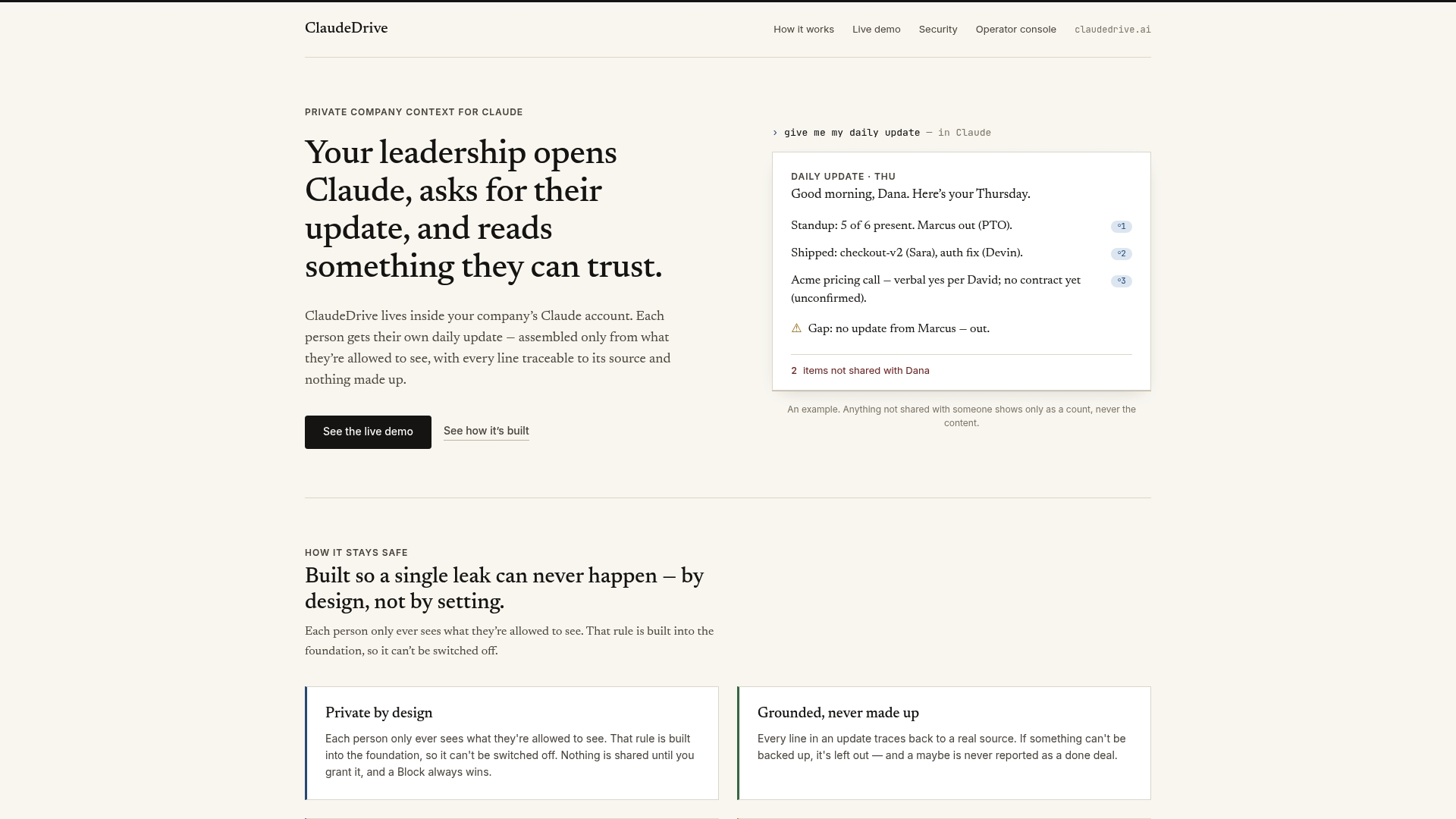
ClaudeDrive connects your existing tools, including meeting notes, GitHub, and the calendar, and feeds each person a private, source-traceable view of what happened. The daily update format is consistent across your leadership team, which means your morning sync starts from a shared baseline rather than five different versions of yesterday. Built by Yungsten Tech, ClaudeDrive runs inside the Claude account you already use. See the live demo or talk to us about a pilot at claudedrive.ai.
FAQ
What plan do I need to get a daily update from Claude?
Claude Pro is required for scheduled tasks and automated briefing delivery. Free accounts do not support task scheduling or MCP connector integrations.
How long does it take to set up a Claude daily briefing?
Setup takes 10–30 minutes depending on how many sources you connect and how detailed your prompt is. Most leaders have a working briefing within the first session.
Can Claude deliver my daily update if my computer is off?
Claude Code Routines run cloud-side and do not require your device to be on. Cowork scheduled tasks do require the desktop app to be open and the computer awake.
How do I stop my Claude daily summary from being too long?
Add a word or section cap to your prompt, apply strict source filters, and include a quiet-day rule that tells Claude to report “no high-priority items” rather than padding the briefing with low-value content.
What is the difference between a Claude daily briefing and asking Claude a question?
A daily briefing is a pre-configured, scheduled workflow that pulls from connected sources and delivers a structured summary automatically. A one-off question relies only on Claude’s training data unless you manually provide context each time.